
6 Phone and Computer Settings That Stop Most Scams for Good

Most advice about protecting a phone or computer starts with antivirus software. That is no longer where the risk sits.
Almost every scam that reaches an older adult today arrives through a message, a call, or a login page, not through a virus. The defences that actually work are settings you turn on once, and then never think about again.
According to CISA, the federal cybersecurity agency, requiring multifactor authentication can lower the risk of an account being broken into by around 99 percent. That is one setting.
Here are six, in the order that matters. Each takes under five minutes and none of them requires technical knowledge.
Read next: Who calls from (813) 668-0479? Reported 10 times from Florida
1. Turn on two step login for your email first
Time: 3 minutes. Do this one before anything else.
Your email is not just another account. It is the master key, because every other account sends its password reset link there. Someone with your email has your bank, eventually.
Two step login, also called multifactor authentication or MFA, means a password alone is not enough. A code or a fingerprint is needed as well.
CISA notes you may see it labelled as Two Factor Authentication, Multifactor Authentication, or Two Step Verification, all of which are the same thing.
Read next: Rental Scams in 2026: $275 Million Lost and How to Spot One
- Gmail: Google Account, then Security, then 2-Step Verification
- Outlook or Hotmail: Microsoft account, Security, Advanced security options
- Yahoo: Account Security, then Two-step verification
If you can choose, pick an authenticator app or a fingerprint over text message codes. Text codes still work and are far better than nothing, but they are the weakest of the options because phone numbers can be hijacked.

2. Turn on automatic updates
Time: 2 minutes, then never again.
Updates are not new features. They are mostly repairs to holes that criminals already know about. CISA lists updating software as one of its four core habits for everyone.
Read next: Is ShopVSB.com Legit? Vitamin Sea Boutique Review 2026
The reason to automate it is simple. When updates need approval, they get postponed, and a postponed update is an open door.
- iPhone: Settings, General, Software Update, Automatic Updates, turn everything on
- Android: Settings, System, Software update, then enable auto download
- Windows: Settings, Windows Update, and leave it on
- Mac: System Settings, General, Software Update, Automatic updates
Also turn on automatic app updates in the App Store or Play Store, because apps get the same kind of repairs.

3. Use passkeys where they are offered
Time: 1 minute per account.
A passkey replaces the password with your fingerprint or face. There is nothing to remember and, importantly, nothing to type into a fake login page.
This is what makes it different from every other tip here. A passkey cannot be phished, because it only works on the genuine site. Even if you tap a scam link and try to sign in, there is no password for the fake page to steal.
Google, Microsoft, Apple, Amazon, and PayPal all support passkeys now. When a site offers one, take it. Look for "Create a passkey" in the security settings.

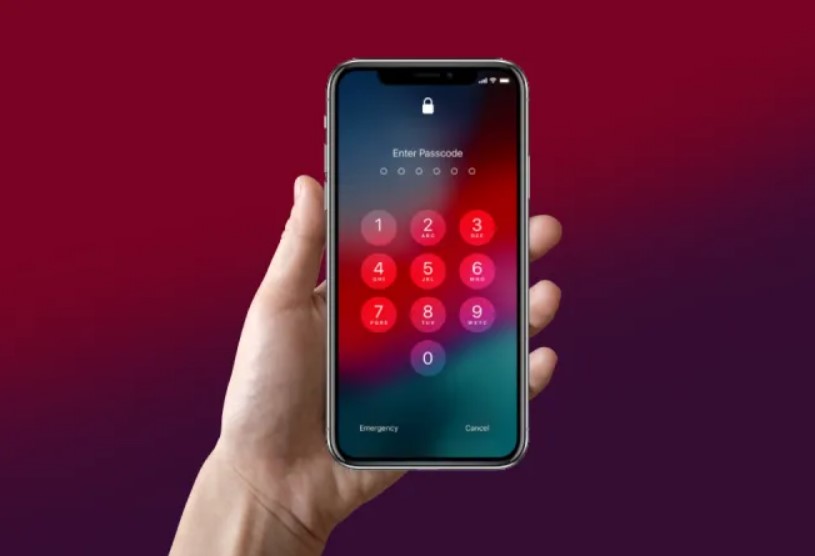
4. Set a screen lock and make it a real one
Time: 2 minutes.
A phone with no lock, or with 1234 as the code, hands over everything if it is lost or taken: your email, your banking app, your messages, and the codes sent to them.
Use a six digit code rather than four, and turn on the fingerprint or face unlock so you rarely have to type it. Avoid a birth year or an address number.
5. Turn on transaction alerts at your bank
Time: 5 minutes, and the highest value on this list after MFA.
This is not a phone setting, it is a bank setting, and most people never switch it on.
Ask your bank to alert you by text or app notification for every card payment and every transfer, with no minimum amount. Some banks default to alerting only above $500, which is exactly the level a scammer stays under while testing your card.
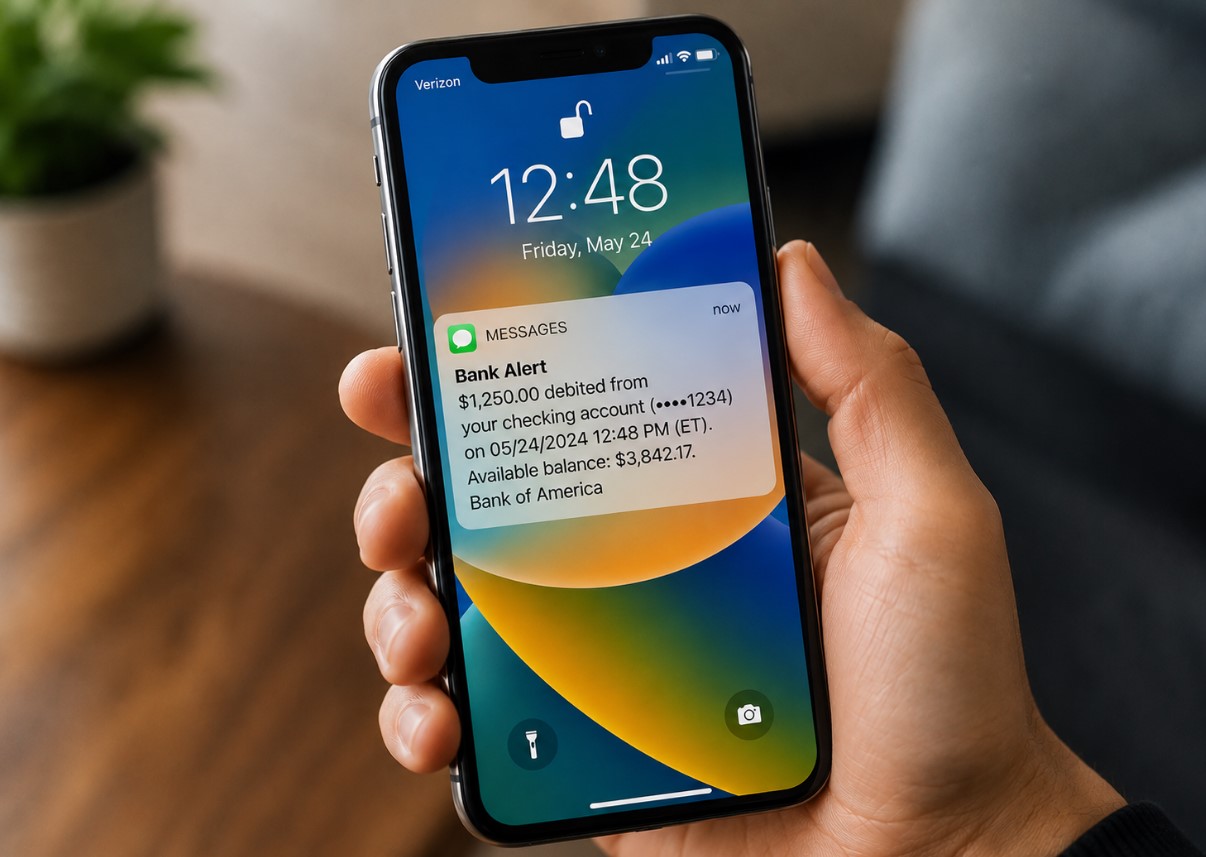
The point is speed. A fraudulent transfer noticed in ten minutes can sometimes be stopped. The same transfer noticed on next month's statement cannot.
6. Download apps only from the official stores
Time: nothing, this is a habit.
The Apple App Store and Google Play review apps before listing them. Apps installed from a link in a message, an email, or a pop-up have been reviewed by nobody.
This matters most during a scam call. Callers claiming to be tech support or your bank will ask you to install something so they can help. The names sound legitimate because they usually are real business tools, including AnyDesk, TeamViewer, and UltraViewer, misused for remote access.
A fixed rule handles this: never install anything during an incoming call. Not once, not for anyone. Our guide to fake Microsoft support calls covers what those calls sound like.
Where antivirus actually fits
Antivirus software is still worth having, and Windows already includes it free as Windows Defender, which is genuinely good. Macs, iPhones and Android phones have built-in protections too.
What antivirus cannot do is stop you being talked into something. It will not intervene when a caller persuades you to move money to a safe account, or when you type your password into a page that looks exactly like your bank.
That is why the six settings above come first. They protect you in situations where being careful is not enough, because everyone stops being careful under pressure.
A short word on passwords
The old advice was to make passwords complicated and change them every three months. Current federal guidance has moved away from both.
Long beats complicated. Three or four unrelated words, such as "harbour pencil ninety cloud", is stronger than "P@ssw0rd!" and far easier to remember.
And do not reuse them. If one site is breached, criminals try that same combination everywhere else. A password manager handles this for you, and both iPhone and Android now include one free.
Doing this with a parent
If you are setting these up for somebody else, two things help more than the settings themselves.
Write down what changed and where. A card by the phone listing which accounts now ask for a code prevents the panic of thinking something is broken.
Explain the reason, not just the step. Someone who knows why they never install software during a call will apply that rule to situations you did not predict. Someone following instructions will not.
Check a number before you trust it
If a caller has asked you to install something or change a setting, look up their number first.
Check a phone number here, free and in about ten seconds.
What Do You Think?
No one has commented yet. If this happened to you as well, say so below. Knowing that other people had the same call makes it far easier for the next person to trust their instincts.
Add Your Comment
Every comment is read by a person before it appears, so it will not show up straight away. Never post your phone number, address, or bank details here.